
What you need
- An address that accepts a POST with JSON, starting with
https://. Most automation tools give you one (see Examples). - Admin rights in your UAT Studio workspace.
Connect your webhook
Get the address of your flow
Create the receiving end first, in the tool you use, and copy its address. Want to look at the messages before building anything? Open webhook.site: it gives you a temporary address and shows everything sent to it. Use it with test data only.
Add the webhook in UAT Studio
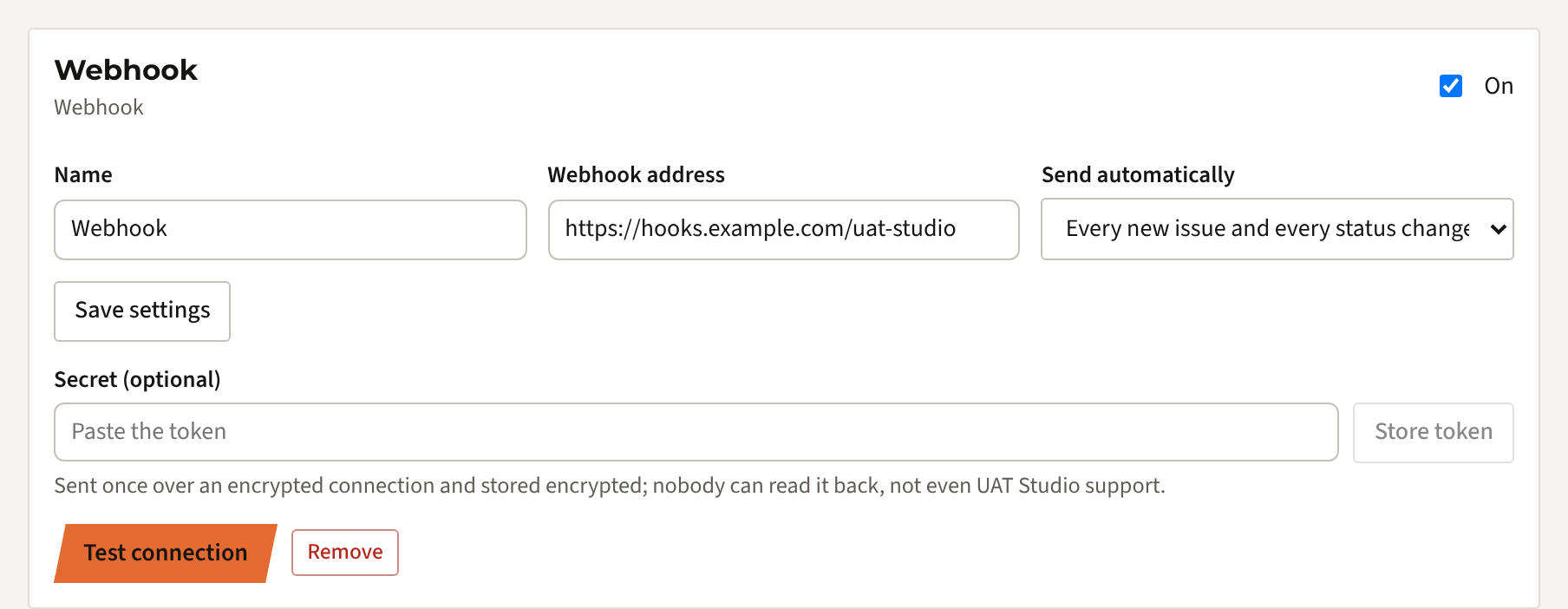
Open your workspace, click Connections, choose Webhook under Add a connection and click Add. Then fill in:
- Webhook address: the address from step 1.
- Send automatically:
- Only when I click Send on an issue (the default): an admin decides which issues go out.
- Every new issue and every status change, by itself: everything goes out straight away.
Click Save settings. The choice under Send automatically is saved as soon as you change it.
Add a secret (optional, recommended)
So your flow knows a message really comes from UAT Studio, make up a long random secret (at least 8 characters, preferably 32 or more), paste it under Secret (optional) and click Store token. Every message then carries the header:
Authorization: Bearer <your secret>
Let your flow refuse messages without the right header. The secret is stored encrypted and can't be read back; paste a new one to replace it.
Test the connection
Click Test connection. UAT Studio sends:
{ "event": "test", "message": "Test message from UAT Studio" }Any answer from 200 to 299 counts as success; you'll see The webhook answered 200. Make sure your flow accepts the test event, or skips it, without an error.
When it sends
| Event | When |
|---|---|
issue.sent | An admin clicks Send to Webhook on an issue. Always available while the connection is On. |
issue.created | A tester reports a new issue. Only with Send automatically on every new issue. |
issue.status_changed | The status of an issue changes, for example to Ready for retest or Closed. Only with Send automatically. Carries from and to. |
test | You click Test connection. |
An issue merged into another one as a duplicate doesn't send a new issue.created.
What it sends
A POST with Content-Type: application/json. All issue events have the same shape:
{
  "event": "issue.status_changed",
  "project": { "id": "6b1f…", "name": "CRM UAT" },
  "issue": {
    "id": "a41c…",
    "key": "ISS-012",
    "title": "Save button greyed out",
    "description": "After changing the phone number, Save stays grey.",
    "severity": "High",
    "priority": "High",
    "status": "Ready for retest",
    "assignee": "Dev team",
    "ticket": "PORTAL-41",
    "ticket_url": "https://acme.atlassian.net/browse/PORTAL-41"
  },
  "test_case": { "num": 4, "title": "Edit a contact", "step": 3 },
  "reported_by": "Tess Tester",
  "from": "In progress",
  "to": "Ready for retest",
  "url": "https://app.uat.studio/p/6b1f…/issues"
}| Field | Meaning |
|---|---|
event | issue.sent, issue.created, issue.status_changed or test. |
project | The UAT project: id and name. |
issue.key | The number in UAT Studio, like ISS-012. Use issue.id to recognise the same issue in later messages. |
issue.severity | Critical, High, Medium or Low. issue.priority: High, Medium or Low. |
issue.status | The status in UAT Studio, New, In progress, Ready for retest, Closed or Rejected. |
issue.ticket | The linked Jira or Azure DevOps ticket, if any; otherwise null. |
test_case | The test and step number the issue was found in; null for an issue outside a test. With issue.sent also the action and expected result of the step. |
reported_by | The name of the tester who found it. |
from, to | Only with issue.status_changed: the old and the new status. |
url | The issues of the project in UAT Studio. Opening it needs sign-in. |
Fields can be null and we may add fields later, so let your flow ignore what it doesn't know. Screenshots and files are never sent; they stay in UAT Studio.
Building the receiving end
Power Automate
- Create an Instant cloud flow with the trigger When an HTTP request is received, for Anyone.
- Under Request Body JSON Schema, click Use sample payload to generate schema and paste the example above.
- Add a Condition on
event(for example: is not equal totest), then the actions you want: a Planner task, a row in Excel, a mail, an item in SharePoint. - Save the flow. The trigger now shows the HTTP URL: that is the webhook address.
Note: the HTTP trigger is a premium connector in Power Automate. For posting in a Teams channel you don't need it: use the Microsoft Teams connection.
Zapier
Create a Zap with the trigger Webhooks by Zapier › Catch Hook, copy the address, click Test connection in UAT Studio and then send one issue, so Zapier learns the fields. Then add the action you want, such as a message in Slack.
Make
Start a scenario with Webhooks › Custom webhook, copy the address and click Redetermine data structure before you send an issue from UAT Studio.
Your own service
Accept a POST with JSON, check the Authorization header against your secret, answer 200 quickly and do the slow work afterwards. Messages are not sent again after a failure, so log what you receive.
If something goes wrong
| You see | What to do |
|---|---|
| The webhook answered 401 or 403 | Your flow refuses the message: check the secret on both sides, or that the flow may be called by anyone. |
| The webhook answered 404 | The address is wrong, or the flow was removed or switched off. Copy the address again. |
| The webhook answered 400 or 500 | Your flow doesn't accept the message. Often it doesn't handle the test event, or a field that is null. Look at the run history of the flow. |
| Nothing arrives for new issues | Check that Send automatically is set to every new issue and that the connection is On. Then send one issue by hand to see the answer of your flow. |
| No Send to Webhook button | Only admins see it, and only when the connection is On. |
| Connections are not part of your plan | Connections come with Team, Partner and Enterprise. Your admin can upgrade under Plan & billing. |
Still stuck? Mail [email protected] with the message you see. Never send us the secret itself.
What leaves UAT Studio
- Messages go out over HTTPS only.
- They contain the issue text, the test and the name of the tester, never files or screenshots. Send them only to a service your organisation trusts with that information.
- The secret is stored encrypted (AES-256), with the key kept separately from the database. Nobody can read it back.
- Switch the connection Off or remove it, and nothing is sent any more.