
Before you start
What you need
- The Connections module in your workspace: it comes with the Team, Business, Partner and Enterprise plans, and as the add-on Integrations for one UAT with the Project plan.
- Admin rights in the UAT Studio project.
- A Make account. The free plan works.
Set up · once per project
Connect UAT Studio to Make
1
Create an API key in UAT Studio
- Sign in at app.uat.studio, open the project and go to Setup.
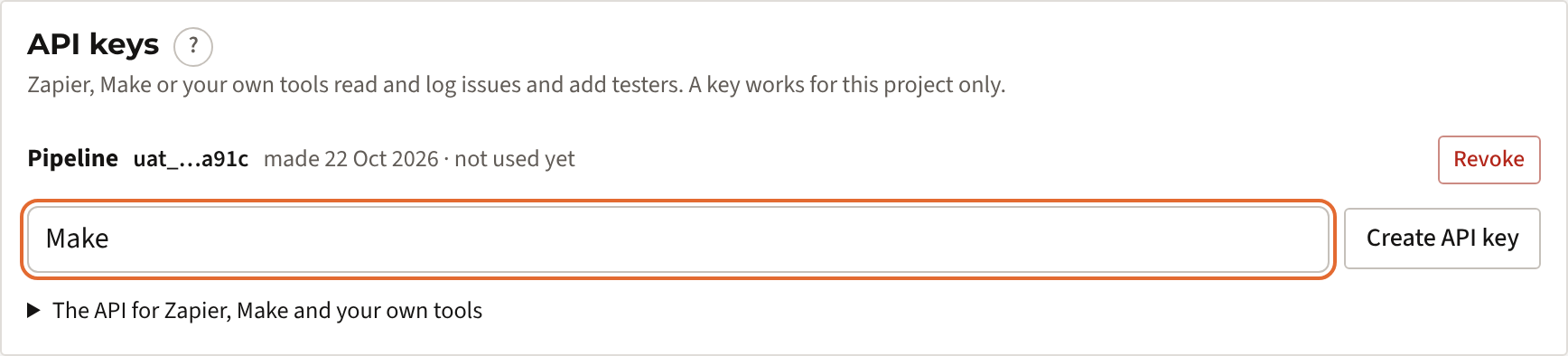
- In the card API keys, type a name such as Make and click Create API key.
- Click Copy. UAT Studio shows the key only once; keep the window open until you have pasted it.
2
Add an HTTP module to a scenario
- In Make, click Create a new scenario and click the big +.
- Search for HTTP and choose Make a request.
A UAT Studio app for Make is comingUntil then the HTTP module does the same. When the app is there, you choose UAT Studio instead and paste the same API key.
3
Fill in the request
Fill in the fields of Make a request from top to bottom. Leave fields that are not in the table as they are.
| Field | What to fill in |
|---|---|
| Authentication type | No authentication. The key goes in the header below. |
| URL | https://app.uat.studio/api/v1/issues?order=created, or another address from the table below. |
| Method | GET to read, POST to create, PATCH to change. |
| Headers | Click Add a header. Name: Authorization. Value: Bearer, a space, and your API key. |
| Query parameters | Leave empty. |
| Body content type | To read (GET): leave empty. To create or change: application/json. |
| Body input method | Only to create or change: JSON string. |
| Body content | Only to create or change: the fields as JSON, for example {"title": "Save fails", "severity": "High"}. |
| Parse response | Yes, so the next modules can use the fields of the issues. |
| Pagination type | Leave empty. |
Click Save.
4
Run it, and set the schedule
- Click Run once. The output shows the issues of your project.
- Add the next modules: an Iterator on the list of issues, a Filter (for example severity is Critical) and the app that should act, such as Slack or Google Sheets.
- To act only on new issues, add
&since=with the time of the previous run, or use the Data store of Make to remember the keys you have handled. - Set the schedule (for example every 15 minutes) and switch the scenario on.
What you can use · https://app.uat.studio/api/v1
The addresses of the API
| Kind | Request | What it does |
|---|---|---|
| Read | GET /issues?order=created | The newest issues. order=updated: the latest changed. Also since, status and limit (up to 100). |
| Read | GET /issues/ISS-012 | One issue. |
| Read | GET /signoffs | The sign-offs, newest first. |
| Create | POST /issues | A new issue: title, and optionally description, severity, priority, test_number, step_number, assignee. |
| Change | PATCH /issues/ISS-012 | status, severity or assignee, with an optional comment. |
| Change | POST /issues/ISS-012/comments | A comment in the history. |
| Create | POST /testers | A tester: name, and optionally email and group. |
Every issue comes with its key (ISS-012), title, description, severity, priority, status, assignee, the test and the tester who found it, the ticket in Jira or Azure DevOps and a link to UAT Studio.
Ideas
What teams build with it
- A message for every Critical issue in a chat channel, with a filter on severity.
- Every sign-off in a spreadsheet or your project portfolio tool, so the steering committee sees which UATs are accepted.
- Testers from a form or your HR system: a new row becomes a tester in the right group.
- Issues from a support tool: a ticket with a tag becomes an issue in the UAT, linked to its test.
If something goes wrong
Common messages
| Message | What to do |
|---|---|
| The API key is not valid | The key was revoked or mistyped. Create a new key under Setup › API keys and reconnect. |
| Connections … are not part of the plan | The workspace has no Connections module. Add it under Plan & billing. |
| This workspace is read-only | The plan has ended. Reading still works; creating and changing do not. |
| There is no issue ISS-… | The key belongs to another project, or the issue was merged. Check the key and the issue key. |
| Nothing happens after a new issue | The scenario runs on its schedule. Check that it is switched on, and that the key belongs to the right project. |
Security
How the key is kept safe
- A key gives access to one project, nothing else in your workspace.
- UAT Studio stores only a fingerprint of the key, never the key itself. Setup shows the last four characters and when it was last used.
- Revoke on Setup stops a key straight away.
- Every issue or tester created or changed through a key shows in the issue history and the audit log, with the name of the key.
- Never put a key in an email, a chat or code; paste it only in Make.