
Before you start
What you need
- The Connections module in your workspace: it comes with the Team, Business, Partner and Enterprise plans, and as the add-on Integrations for one UAT with the Project plan.
- Admin rights in the UAT Studio project.
- A Zapier account. The free plan works for two-step Zaps.
Set up · once per project
Connect UAT Studio to Zapier
1
Create an API key in UAT Studio
- Sign in at app.uat.studio, open the project and go to Setup.
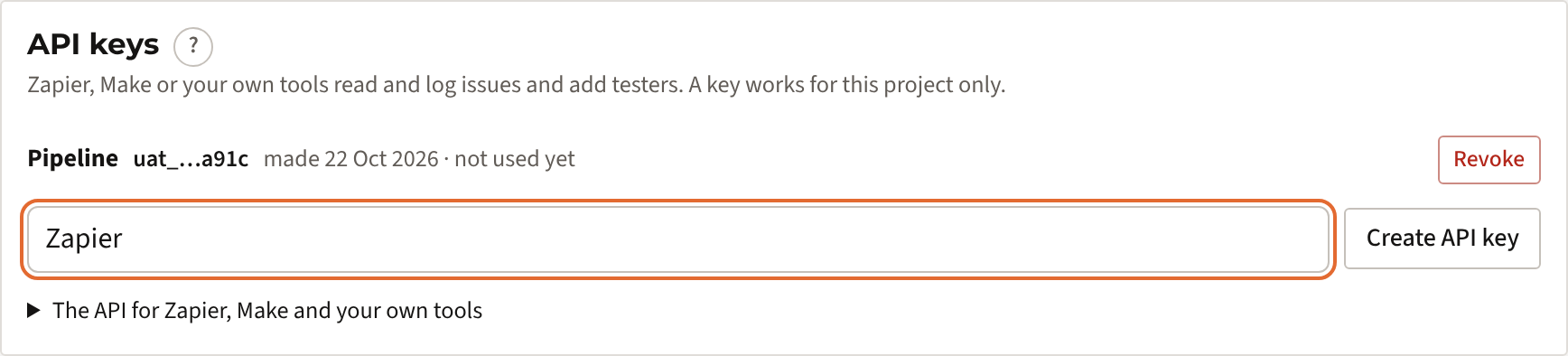
- In the card API keys, type a name such as Zapier and click Create API key.
- Click Copy. UAT Studio shows the key only once; keep the window open until you have pasted it.
2
Add UAT Studio to your Zapier account
Open the UAT Studio app for Zapier and click Accept invite & build a Zap. Sign in to Zapier first if it asks. You only do this once per Zapier account.
3
Make a Zap with a UAT Studio trigger
- In Zapier, click + Create › Zaps.
- Click Trigger, search for UAT Studio and choose an event, for example New Issue.
- Under Account, click Sign in and paste the API key from step 1. Zapier shows the name of your project.
- Click Test trigger. Zapier picks up the newest issues of the project. No issues yet? Log one in UAT Studio first.
4
Choose what should happen, and publish
- Click Action and choose an app, for example Email by Zapier, Slack, Microsoft Teams or Google Sheets.
- Fill in the fields; click in a field to pick values from UAT Studio, such as Issue key, Title and Link to UAT Studio.
- Click Test step, then Publish.
The other way aroundTo create issues or add testers in UAT Studio, choose UAT Studio as the action app instead, with the same API key.
What you can use
Triggers, actions and searches
| Kind | Zapier | What it does |
|---|---|---|
| Trigger | New Issue | A tester or admin logs a new issue. |
| Trigger | Updated Issue | An issue changes: status, severity, assignee or text. |
| Trigger | New Sign-off | The business accepts or rejects the test, for the project or a group. |
| Action | Create Issue | Logs an issue, optionally on a test and step. |
| Action | Update Issue | Changes status, severity or assignee, with a comment. |
| Action | Add Comment to Issue | Adds a comment to the history of an issue. |
| Action | Add Tester | Adds a tester to the project, in a group if you choose one. |
| Search | Find Issue | Finds an issue by its key, such as ISS-012. |
Every issue comes with its key (ISS-012), title, description, severity, priority, status, assignee, the test and the tester who found it, the ticket in Jira or Azure DevOps and a link to UAT Studio.
Ideas
What teams build with it
- A message for every Critical issue in a chat channel, with a filter on severity.
- Every sign-off in a spreadsheet or your project portfolio tool, so the steering committee sees which UATs are accepted.
- Testers from a form or your HR system: a new row becomes a tester in the right group.
- Issues from a support tool: a ticket with a tag becomes an issue in the UAT, linked to its test.
If something goes wrong
Common messages
| Message | What to do |
|---|---|
| The API key is not valid | The key was revoked or mistyped. Create a new key under Setup › API keys and reconnect. |
| Connections … are not part of the plan | The workspace has no Connections module. Add it under Plan & billing. |
| This workspace is read-only | The plan has ended. Reading still works; creating and changing do not. |
| There is no issue ISS-… | The key belongs to another project, or the issue was merged. Check the key and the issue key. |
| Nothing happens after a new issue | Zapier checks for new issues every 1 to 15 minutes, depending on your Zapier plan. Check that the Zap is on, and that the key belongs to the right project. |
Security
How the key is kept safe
- A key gives access to one project, nothing else in your workspace.
- UAT Studio stores only a fingerprint of the key, never the key itself. Setup shows the last four characters and when it was last used.
- Revoke on Setup stops a key straight away.
- Every issue or tester created or changed through a key shows in the issue history and the audit log, with the name of the key.
- Never put a key in an email, a chat or code; paste it only in Zapier.